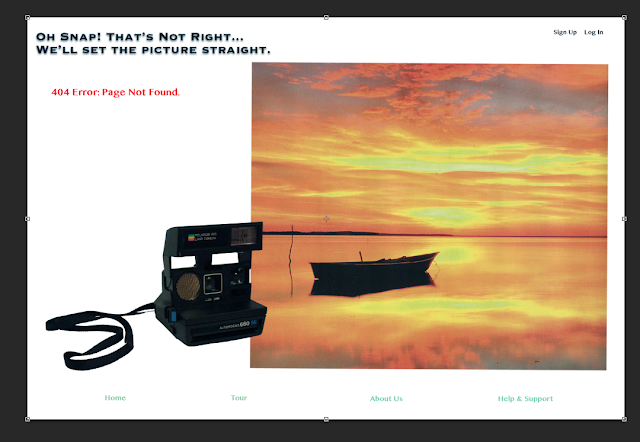
Today in class we started out having a mini critique for our 404 Error Page within our rows. Some of the suggestions I had was to change the font of my one piece of text and play around with the photograph I have in my page. I mainly worked on little details such as straightening items and finding the correct font for my error page.
I still have a little bit of fixing up to do and make sure it works out in the html page but I believe I am just about done.
Wednesday, October 14, 2015

Monday, October 12, 2015
Week 8A
Today in class we went over a few more aspects of Photoshop and then had the rest of the time to work on our 404 Error Page.
In the beginning of class, this is what my error page looked like:

As you can see, not a lot has been done, just a scanned image and a photo I traced have been placed into a Photoshop document.
Today I added text, a few accents, and worked with the layout some more. I added the text in Photoshop. I chose the text I did because it went along with options from the website I am creating this page for.


In the beginning of class, this is what my error page looked like:

Today I added text, a few accents, and worked with the layout some more. I added the text in Photoshop. I chose the text I did because it went along with options from the website I am creating this page for.

I decided to bring up the website www.pixieset.com again, which is the site I am making the error page for, so I could choose the right text font and color scheme. This is what the site's home page looks like:

I decided to choose a font that look similar to the text "Beautiful Client Photo Galleries," and use the light teal color (like the "Get Started" box) throughout my 404 error page to connect the two pages.
I then went to Illustrator to create a rectangular shape the text at the bottom of the screen would sit in.

I then went back into Photoshop, went to File -> Place Linked and added the teal rectangle into my Photoshop document. I placed it around the "Home" text at them bottom of the screen and then, holding down the "option" key, created three more to surround each individual text, editing their size as needed.

After looking over my page, I decided to make all the rectangles the same size. I deleted the ones around "Home," "Tour," and "About Us," and while holding down the option key, using the box around "Help & Support" created copies of that same size box and placed them around the rest of the text.

Once I was done with this, I went back into Illustrator to create another accent shape for my page. I decided to create a single line:

Placing it into Photoshop the same way I brought in the rectangle, I placed the line right above the top edge of the photograph, as seen here:

I also switched the position of the "404 Error: Page Not Found." and "On Snap! That's Not Right..., We'll Set The Picture Straight," text which I believe works much better that the placement before.
I may add in the name of the website somewhere within the error page and possibly switch out the photograph with a different one but as of now I believe I am just about done.
Week 7: Outside the Classroom
For work outside the classroom we had to watch a number of videos on how to use Photoshop. Photoshop Workspace was an introduction to Photoshop and skimming over the different tools. ( https://helpx.adobe.com/photoshop/how-to/introduction-work-area.html?set=photoshop--fundamentals--photoshop-workspace )
Panning and zooming was (obviously) a tutorial on how to zoom in and out of your image and how to pan across it. https://www.youtube.com/watch?v=Vvbd_p2d4AU&list=PLfK2tDJdBamSXK_i3zjexwcsHxX7w_ax3&index=14
Cycling Through Different Screen Modes went over the different views of the screen you could choose from and the shortcuts for how to get them. It also went over how to change items like the dropshadow in Photoshop. https://www.youtube.com/watch?v=Sy5V4ifoMyo&list=PLfK2tDJdBamSXK_i3zjexwcsHxX7w_ax3&index=15
Understanding File Formats talked about the different files you can save your image as. One way is JPEG which is a single layer that is compressed and a smaller size, this is what you see most often on the internet. Another file is RAW, which is an image captured by a digital camera. There is another type of file called DNG which is open to anyone through Adobe and is an archival format for RAW images. Two others are PSD and TIFF, neither of these lower the quality of an image. https://www.youtube.com/watch?v=nXRKgo0CAu0&list=PLfK2tDJdBamSXK_i3zjexwcsHxX7w_ax3&index=16
What Resolution Image Will You Need goes over the different resolutions of an image. There is Halftone which uses a CMYK dot pattern and is used by printing press. There is Continuous Tone, most commonly used by Inkjet printers.The third is the resolution for the screen of monitors, tablets, and/or projectors. https://www.youtube.com/watch?v=uP0K_JJqrA&list=PLfK2tDJdBamSXK_i3zjexwcsHxX7w_ax3&index=19
Crop and Transform a Photo - Crop a Photo simply goes over how to use the crop tool in Photoshop. This allows you to create a whole new composition. It is recommended to not have the "Delete Cropped Pixels" selected when cropping your image. https://helpx.adobe.com/photoshop/how-to/crop-remove-photo-edges.html?set=photoshop--fundamentals--crop-transform
Crop and Transform - Resize an Image is short step-by-step tutorial on how to resize your image in three quick steps. https://helpx.adobe.com/photoshop/how-to/resize-image.html?set=photoshop--fundamentals--crop-transform
Crop and Transform - Understanding Canvas Size shows you how to change the width and height of your canvas. https://helpx.adobe.com/photoshop/how-to/photoshop-understand-canvas-size.html?set=photoshop--fundamentals--crop-transform
Introduction to Layers talks about how to use different layers to add interest to your image and be able to go back to that single aspect without risking changing the entire image.
Mask Out Part of an Image goes over how to use the layer mask to hide pixels instead of completely erasing them. https://helpx.adobe.com/photoshop/how-to/layer-basics-explained.html?set=photoshop--fundamentals--layers
What are Photoshop Adjustment Layers teaches you how to use adjustment layers to enhance your image. Any adjustments made under "Image" -> "Adjustments" is permanent which is why it is most recommended to use the adjustment layers (under "Window") menu. https://helpx.adobe.com/photoshop/how-to/mask-select-photo.html?set=photoshop--fundamentals--select-image-part
Under Image Adjustments, the two videos I decided to watch were Lighten and Darken Areas and Change Color and Saturation. https://helpx.adobe.com/photoshop/how-to/photoshop-adjustment-layers.html?set=photoshop--fundamentals--image-adjust
Lighten and Darken areas goes over how to select different parts of your image to lighten and darken. This involves masks. ( https://helpx.adobe.com/photoshop/how-to/photoshop-dodge-burn.html )
Change Color and Saturation talks about how to use the Hue/Saturation adjustment layer to change specific colors in your image. ( https://helpx.adobe.com/photoshop/how-to/photoshop-shift-color-hue-saturation.html )
Panning and zooming was (obviously) a tutorial on how to zoom in and out of your image and how to pan across it. https://www.youtube.com/watch?v=Vvbd_p2d4AU&list=PLfK2tDJdBamSXK_i3zjexwcsHxX7w_ax3&index=14
Cycling Through Different Screen Modes went over the different views of the screen you could choose from and the shortcuts for how to get them. It also went over how to change items like the dropshadow in Photoshop. https://www.youtube.com/watch?v=Sy5V4ifoMyo&list=PLfK2tDJdBamSXK_i3zjexwcsHxX7w_ax3&index=15
Understanding File Formats talked about the different files you can save your image as. One way is JPEG which is a single layer that is compressed and a smaller size, this is what you see most often on the internet. Another file is RAW, which is an image captured by a digital camera. There is another type of file called DNG which is open to anyone through Adobe and is an archival format for RAW images. Two others are PSD and TIFF, neither of these lower the quality of an image. https://www.youtube.com/watch?v=nXRKgo0CAu0&list=PLfK2tDJdBamSXK_i3zjexwcsHxX7w_ax3&index=16
What Resolution Image Will You Need goes over the different resolutions of an image. There is Halftone which uses a CMYK dot pattern and is used by printing press. There is Continuous Tone, most commonly used by Inkjet printers.The third is the resolution for the screen of monitors, tablets, and/or projectors. https://www.youtube.com/watch?v=uP0K_JJqrA&list=PLfK2tDJdBamSXK_i3zjexwcsHxX7w_ax3&index=19
Crop and Transform a Photo - Crop a Photo simply goes over how to use the crop tool in Photoshop. This allows you to create a whole new composition. It is recommended to not have the "Delete Cropped Pixels" selected when cropping your image. https://helpx.adobe.com/photoshop/how-to/crop-remove-photo-edges.html?set=photoshop--fundamentals--crop-transform
Crop and Transform - Resize an Image is short step-by-step tutorial on how to resize your image in three quick steps. https://helpx.adobe.com/photoshop/how-to/resize-image.html?set=photoshop--fundamentals--crop-transform
Crop and Transform - Understanding Canvas Size shows you how to change the width and height of your canvas. https://helpx.adobe.com/photoshop/how-to/photoshop-understand-canvas-size.html?set=photoshop--fundamentals--crop-transform
Introduction to Layers talks about how to use different layers to add interest to your image and be able to go back to that single aspect without risking changing the entire image.
Mask Out Part of an Image goes over how to use the layer mask to hide pixels instead of completely erasing them. https://helpx.adobe.com/photoshop/how-to/layer-basics-explained.html?set=photoshop--fundamentals--layers
What are Photoshop Adjustment Layers teaches you how to use adjustment layers to enhance your image. Any adjustments made under "Image" -> "Adjustments" is permanent which is why it is most recommended to use the adjustment layers (under "Window") menu. https://helpx.adobe.com/photoshop/how-to/mask-select-photo.html?set=photoshop--fundamentals--select-image-part
Under Image Adjustments, the two videos I decided to watch were Lighten and Darken Areas and Change Color and Saturation. https://helpx.adobe.com/photoshop/how-to/photoshop-adjustment-layers.html?set=photoshop--fundamentals--image-adjust
Lighten and Darken areas goes over how to select different parts of your image to lighten and darken. This involves masks. ( https://helpx.adobe.com/photoshop/how-to/photoshop-dodge-burn.html )
Change Color and Saturation talks about how to use the Hue/Saturation adjustment layer to change specific colors in your image. ( https://helpx.adobe.com/photoshop/how-to/photoshop-shift-color-hue-saturation.html )
Wednesday, October 7, 2015
Week 7B
Today in class we started out by going over how to use the clone-stamp tool and adjustment layers to aid in the making of our 404 Error Page.
After that we had the rest of class to start working on our 404 Error Page using the images we took ourselves and scanned from magazines, books, etc.
Today I just worked on tracing the images I want to use for my page. This included a Polaroid Camera and two images I had scanned from a book.
First I started with tracing the camera and placing it into an empty Photoshop document:


I also traced a second image I am contemplating using in my 404 Error page:


I copied that image into the Photoshop document as well and then made the layer holding the three photographs invisible so I could play around with the new one to see which I preferred.
As of now I know for sure I am going to use the image of my Polaroid Camera but am not 100% sure which scanned image I am going to use. I still have a few more options I am going to play around with.
After that we had the rest of class to start working on our 404 Error Page using the images we took ourselves and scanned from magazines, books, etc.
Today I just worked on tracing the images I want to use for my page. This included a Polaroid Camera and two images I had scanned from a book.
First I started with tracing the camera and placing it into an empty Photoshop document:


After that I traced one of the two images I am thinking of using for my page:

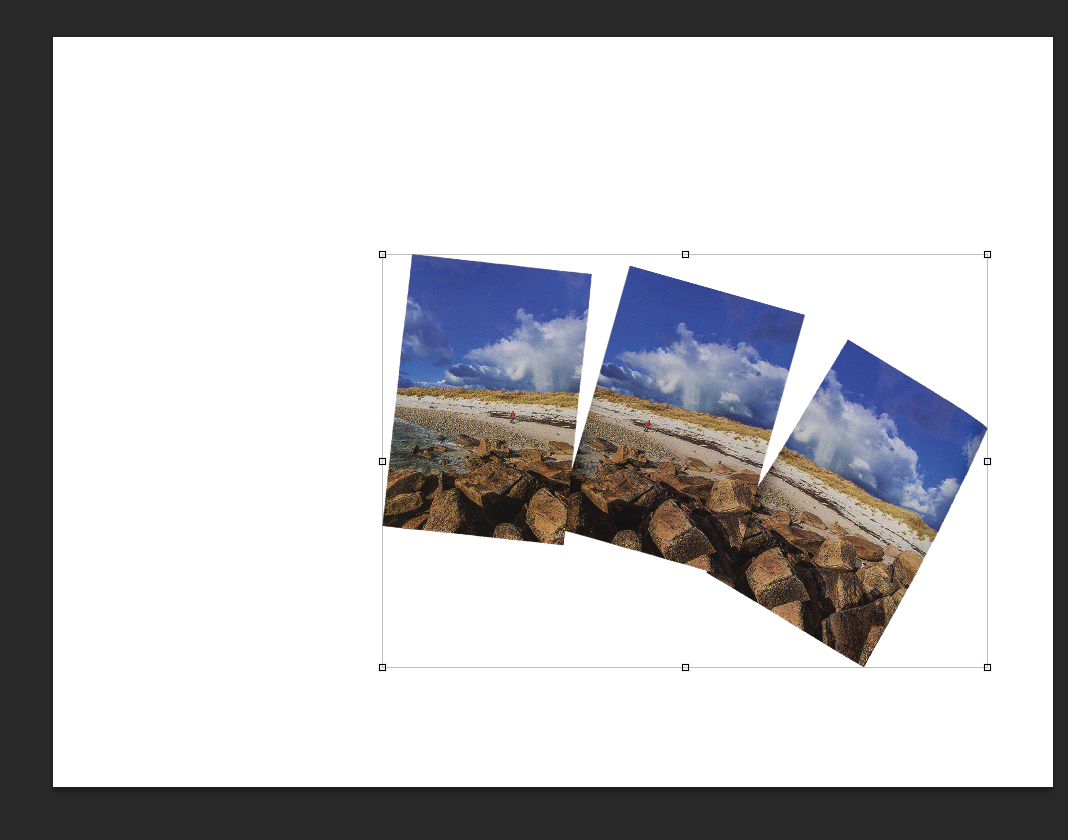
I then added that image to the Photoshop document that now contains the image of my camera and played around with its position:


I copied that image into the Photoshop document as well and then made the layer holding the three photographs invisible so I could play around with the new one to see which I preferred.
As of now I know for sure I am going to use the image of my Polaroid Camera but am not 100% sure which scanned image I am going to use. I still have a few more options I am going to play around with.
Monday, October 5, 2015
Week 7A
Today in class we started talking about the new project we are working on. Our new project is creating a 404 Error Page for a specific website of our choosing using Photoshop and Illustrator. Our final product must include one scanned photo, one captured photo that we took ourselves, and one graphic created in Illustrator. Our error page must also reflect the brand, capture user attention, explain what the problem is and how it occurred, instruct the user how to correct it, is written in plain language using an active voice, and show a supporting composite visual.
After going over the project, I started searching for websites that did not have creative, thought-out 404 error pages. I found three that I could work with are Forever 21, Amazon, and Verizon Wireless. These are their error pages:
Forever 21:


After going over the project, I started searching for websites that did not have creative, thought-out 404 error pages. I found three that I could work with are Forever 21, Amazon, and Verizon Wireless. These are their error pages:
Forever 21:

Amazon:

Verizon Wireless:

After narrowing down my search to these three websites, I started sketching out and writing down some ideas. Forever 21 and Verizon Wireless were not too hard to come up with ideas but Amazon, because it is such a broad company, was a lot harder.
Here are the sketches I have so far for each company:
Forever 21:

Verizon Wireless:

Amazon:

So far my stronger ideas are Forever 21 and Verizon Wireless. I still would like to come up with a few more sketches for each.
The hardest past is going to be getting images for this project.
Saturday, October 3, 2015
Week 6: Outside the Classroom
Today was the Interdisciplinary Interaction Design Conference. There were four speakers, Joni Trythall, Kasey Hults, Erin Good, Sam Provenza, and Sofia Millares. They each talked about something a bit different. Joni talked about Scalable Vector Graphics (SVGs) and how to use them. Her presentation included work of her own as examples which helped with understanding how exactly it works. Kasey Hults talked about her experience in the workforce, who she worked for and the process she went through when creating designs for companies. Erin Good talked about her experience with interviews for internships and job opportunities and gave out advice for us college students who will soon be going through the same process. Sam Provenza's presentation was about Flexbox and how to use that when designing items like websites, she even showed up an example she had set up and went through it to show us how it works, letting us see the changes made not only in the coding but the appearance of her design as well. Finally, Sofia came up to give her presentation. Like Kasey she talked about her work with Nasdaq and how her team works together to come up with different designs for clients.
Thursday, October 1, 2015
Week 6B
In class today we learned how to take part of one image and photoshop it into another, making it look like it is actually part of the second picture.
In order to do this, you must have both images open in Photoshop. You then go to the image you want to take a part of, and using the pen tool, outline the section of the image you want to take out and place in the second image. Make sure when outlining, you zoom in pretty close and take your time outlining the image. After outlining what you want to edit, go to the Path panel and chose Make a Selection from the drop-down menu, you then change the feathering to .2.n Once this is done, just click Command-C to come, go to the second image, and click Command-V to paste. You'll then scale the copied image to the correct proportions (remember, when you are scaling down, you lose those pixels so take your time). When placing your copied image behind whatever is in your second picture, outline using the pen tool again the parts that will be covering your copied image. You'll then do the same thing you did after outlining the section of the first image you wanted to copy into the second. This is how you photocopy one image into another.
After practicing this on our own in class, we started the actual in-class/homework assignment. For this assignment we needed to scan an ad from a magazine and open it in Photoshop, then take a picture of ourselves that we will then edit into the image of the ad.
This is the ad that I edited myself into:

And this is the photo of myself that I edited into the ad:

After following the same steps from above, this is what the finished product looks like:

I had to fix up the lighting on the image of myself once I edited it into the ad as well. Tracing myself was a bit difficult and took some time but once that is done, the rest is pretty easy.
In order to do this, you must have both images open in Photoshop. You then go to the image you want to take a part of, and using the pen tool, outline the section of the image you want to take out and place in the second image. Make sure when outlining, you zoom in pretty close and take your time outlining the image. After outlining what you want to edit, go to the Path panel and chose Make a Selection from the drop-down menu, you then change the feathering to .2.n Once this is done, just click Command-C to come, go to the second image, and click Command-V to paste. You'll then scale the copied image to the correct proportions (remember, when you are scaling down, you lose those pixels so take your time). When placing your copied image behind whatever is in your second picture, outline using the pen tool again the parts that will be covering your copied image. You'll then do the same thing you did after outlining the section of the first image you wanted to copy into the second. This is how you photocopy one image into another.
After practicing this on our own in class, we started the actual in-class/homework assignment. For this assignment we needed to scan an ad from a magazine and open it in Photoshop, then take a picture of ourselves that we will then edit into the image of the ad.
This is the ad that I edited myself into:
And this is the photo of myself that I edited into the ad:

After following the same steps from above, this is what the finished product looks like:

I had to fix up the lighting on the image of myself once I edited it into the ad as well. Tracing myself was a bit difficult and took some time but once that is done, the rest is pretty easy.
Subscribe to:
Posts (Atom)